 Skip to content
How to Connect FireStick Remote ?
Your easy guide to connecting your FireStick remote effortlessly.
Connecting your Firestick remote is a straightforward process that enhances your streaming experience. The Firestick remote is designed for quick pairing, allowing users to effortlessly control their device. Whether you’re setting it up for the first time or reconnecting after a reset, understanding the pairing process ensures smooth operation.
A properly connected remote is crucial for navigating menus, launching apps, and managing playback. Without a functional remote, accessing the full range of features on your Firestick becomes challenging. Additionally, a well-paired remote ensures minimal lag, reducing frustrations during use.
This guide covers not just the pairing steps but also highlights troubleshooting techniques for common issues. It’s important to check battery health and signal clarity, as these are frequent causes of connection problems. By addressing potential obstacles and following the outlined instructions, you can enjoy a seamless setup process.
Whether you’re a first-time user or looking to resolve an unresponsive remote, following these instructions will restore your Firestick’s full functionality. Pairing your remote correctly also ensures compatibility with voice commands, enhancing your viewing experience. The steps are designed to be user-friendly, making it easy for anyone to complete the process without requiring technical expertise.
What is a FireStick Remote?
- Device ControlThe FireStick remote controls streaming and navigation on your device.
- Voice CommandsUtilise voice control for easy access to content.
- Ergonomic DesignDesigned for comfort, ideal for extended viewing sessions.
Preparing Your FireStick Remote
- Step 1: Insert BatteriesOpen the back cover and insert batteries correctly.
- Step 2: Place FireStickEnsure your FireStick is connected to the TV and power source.
- Step 3: Power OnSwitch on your TV and select the correct HDMI input.
How to pair a firestick remote
- Power On RemotePress the Home button until the LED indicator lights up.
- Automatic PairingYour FireStick should automatically detect and pair with the remote.
- Successful ConnectionWait for the on-screen confirmation of a successful connection.
Troubleshooting Connection Issues
- Check BatteriesEnsure batteries are not low or placed incorrectly.
- ProximityKeep the remote close to the FireStick for better detection.
- Restart FireStickIf issues persist, try restarting your FireStick device.
Using the FireStick Remote Functions
- NavigationUse the directional pad for smooth navigation through menus.
- Voice AssistantHold the microphone button to use Alexa for command input.
- Playback ControlAccess play, pause, rewind, and fast forward features easily.
Controlling Your TV with the FireStick Remote
- Adjusting VolumeUse the volume buttons on the remote to control your TV’s sound.
- Power On/OffThe remote can also turn your TV on or off if set up correctly.
- Input SelectionSwitch between HDMI inputs using the remote for easy access to devices.
Tips for Maintaining Your FireStick Remote
- Keep it CleanRegularly clean the remote to remove dust and grime.
- Avoid Liquid DamageKeep the remote away from liquids to prevent malfunction.
- Store SafelyStore it in a safe place when not in use to avoid loss.
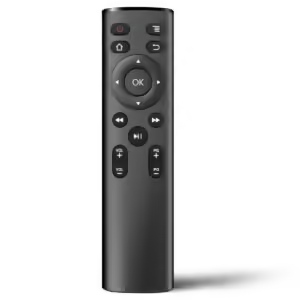
After completing the steps to pair your Firestick remote, you can enjoy seamless navigation and control over your device. A well-connected remote ensures smooth browsing, quick access to apps, and uninterrupted streaming. If you encounter any further issues, revisit the troubleshooting tips to address potential connectivity problems. With your remote set up correctly, you’re all set for an enhanced Firestick experience.
